The Skill Map is a screen that provides a matrix-format overview of the status of Members, Skills, and Certifications.
This article summarizes the specifications of the Skill Map.
Overview
The Skill Map has tabs for "Skills," "Certifications," "Members," "Achievement," and "Custom View."
You can filter by conditions such as organization or skill Folder, and check the status with Members or Skills as the axis.
Specifications
Differences in visible scope by permission
System Admin / Operation Admin
- All members of the Group and all published skills are included.
- Employment Type is also displayed.
Approver
- Members of the Approver's own organization and its Descendant organizations (excluding themselves) are included.
- The skills displayed are limited to published skills distributed to the Approver themselves.
- Employment Type is not displayed.
- The options available when filtering by organization are also limited to the Approver's own organization and its Descendant organizations.
General Users cannot use the Skill Map.
Searching for Members

Using "Search by user name," you can search for Members not only by Display Name, but also by Account ID, E-Mail Address, Organization, Position, Employment Type, and permission name.
Since you can search for an organization by its parent organization name, entering a parent organization name will also find members of organizations beneath it.
Entering multiple terms separated by spaces will narrow the results to members that match all terms.
Users who cannot view Employment Type cannot search by Employment Type name.
Names can be searched regardless of whether spaces are included (searching "Watanabe Sayuri" will also find "Watanabe Sayuri" written without a space).
Filtering operations

On any tab, select conditions in "Filter settings" next to the search field, then press "Apply" to apply them to the table.
"Apply" can only be pressed when a condition has been changed.
Active conditions are shown in "Current conditions" above the table, and can be removed one at a time with "×" (changes are reflected immediately).
"Clear" in the panel only removes conditions while in the process of re-selecting; to apply changes to the table, press "Apply."
Terms entered in the search field are reflected as soon as they are entered, and are not cleared by "Clear."
Filtering by organization and Organization Group
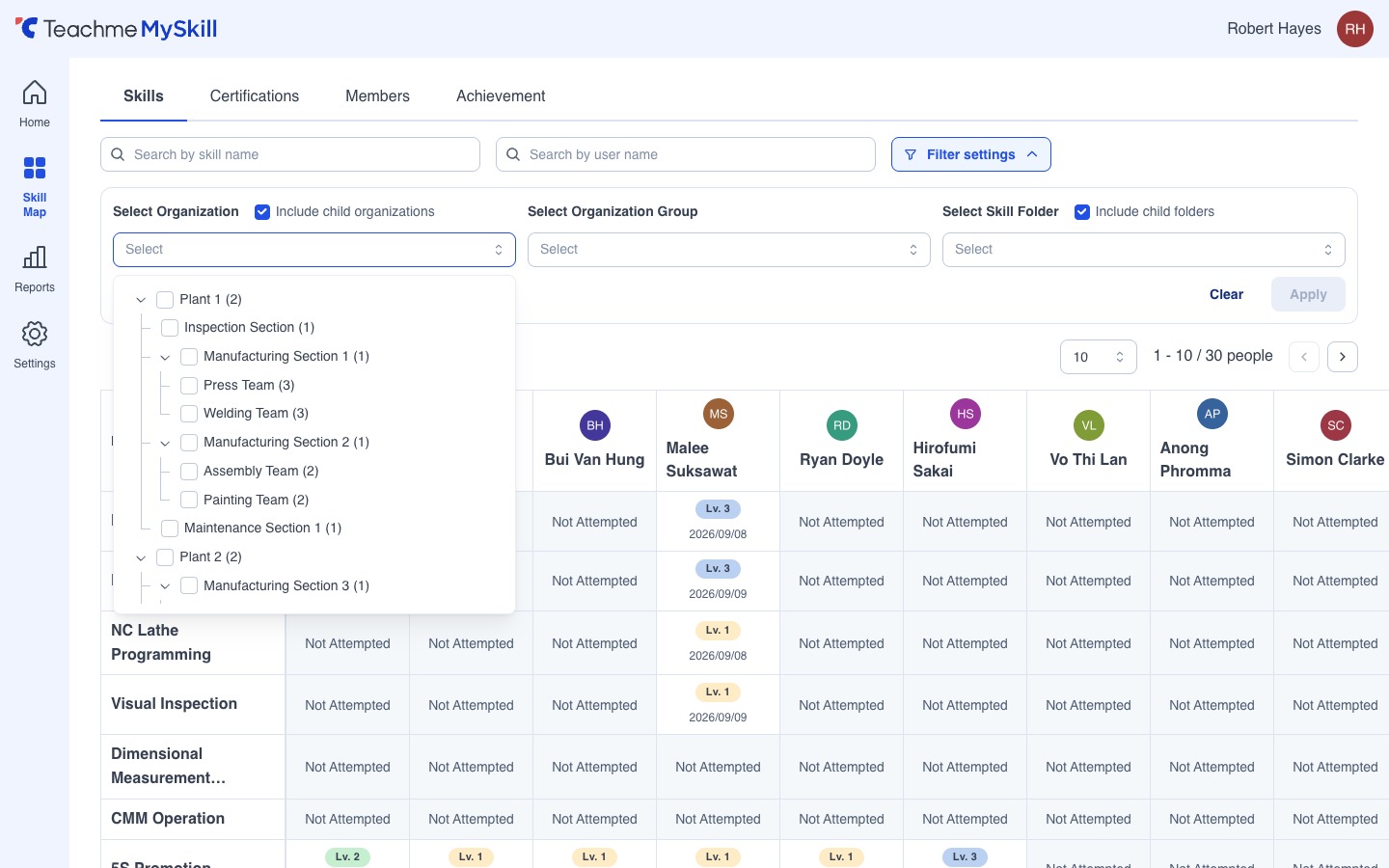
Selecting both "Organization" and "Organization Group" will display only items that match both.
If there are no matching items, nothing will be displayed.
In the "Achievement" tab, only organizations that match both will appear as columns.
In the "Achievement" tab, turning on "Include child organizations" and selecting a parent organization will display each of the subordinate organizations as separate columns as well.
The figures for subordinate organizations are not combined into the parent organization's column.
Active conditions will show "(including descendants)."
In a newly opened Browser, "Include child organizations" starts in the on state.
Filtering by Position and Employment Type
On any tab, you can filter by "Position" and "Employment Type."
For each, you can specify "Include" to show only selected items, or "Exclude" to hide selected items.
Excluded conditions are shown as "(Excluded)" in "Current conditions."
"Employment Type" is only displayed to users who can view Employment Type.
Member list

- Clicking the "Name" column header sorts the list in ascending or descending order by name.
- When filtering using "Include" for Employment Type, members with no Employment Type set will not be displayed.
Approver and approval date/time
The "Acquisition history" displayed when hovering over a cell in the "Skills" tab shows the acquisition date per level, as well as the Approver and approval date/time.
Levels acquired through the user's own learning and levels registered via Data import are indicated as such.
The Approver, approval date/time, and indication that a level was acquired through the user's own learning are shown for levels acquired on or after 2026/11/20.
For levels acquired before that date, "No corresponding approval record can be found" is displayed (excluding levels registered via Data import).
The details that open when pressing a cell in the "Certifications" tab show the "Registration method" for the current registration (approval of an acquisition request, approval of a renewal request, approval of an Edit details, or Data import), along with the Approver and approval date/time.
Level definitions
You can check the name of each level from "Level definitions" in the "Skills" tab.
The names are those set in the Level Label Settings.
Number of items displayed in Achievement

In the "Achievement" tab, organizations are displayed 10 per page as columns.
You can choose to display 10, 25, 50, or 100 organizations per page.
Colors and calculation methods in Achievement

Pressing the ⓘ to the right of the legend in the "Achievement" tab lets you check the color criteria and calculation methods.
- Achieved…100%
- Near target…87.5% or more but less than 100%
- Not achieved…Less than 87.5%
- Not applicable…No data to aggregate (e.g., when there are no applicable members)
The calculation method differs depending on the display criteria.
-
Skill framework…The average skill progress rate is the average of "current Lv. ÷ target Lv." for each applicable member.
The target Lv. is the Max Lv. of the skill.
For Folders, the progress rate is averaged across all applicable members × skills under the Folder.
Even when displayed as "Average Lv.," the color is determined by the average progress rate. -
Quests…The acquisition progress rate is calculated by averaging "current Lv. ÷ required Lv." for each required skill per person, then averaging further across all applicable members.
Quests do not have an "Average Lv." display.
In both cases, not yet started is 0%, and the upper limit for each progress rate is 100%.
Since the display is rounded up to the nearest integer, a displayed value of 88% may still be in the "Not achieved" category.
100% is only displayed when fully achieved.
Custom View
In the "Custom View" tab, you can select the dimensions and metrics for rows and columns to aggregate the achievement status of Skills and Quests in a table.
It is available to users who can view the "Achievement" tab.
The scope of applicable people and skills is the same as the "Achievement" tab.
- Target type…Select either "Skills" or "Quests."
- Rows/Columns…For Skills, choose from "Organization," "Person," "Folder," or "Skill." For Quests, choose from "Organization," "Person," or "Quest."
-
Metric…For Skills, choose from "Average Lv," "Lv ratio," "Max Lv attainment rate," or "Max Lv attainment count." For Quests, choose from "Required Lv ratio," "Number fulfilled," or "Fulfillment rate."
Calculation methods can be checked via the ⓘ next to "Metric." - People to aggregate per organization…When rows or columns are set to organization, select either "People directly belonging to that organization" or "Include people belonging to child organizations."
Clicking a cell opens "Cell breakdown," where you can check the value for each applicable member and their current Lv. for each skill.
Cells where there is no combination of applicable people and skills (or Quests) will display "-."
When the metric is "Lv ratio," "Max Lv attainment rate," "Required Lv ratio," or "Fulfillment rate," you can change the legend categories from "Edit legend" to the right of the legend.
You can create between 2 and 5 categories, and for each category you can set a name (up to 16 characters), color, and start value of the range (in 0.1% increments).
The legend is configured per metric, and is saved together when the view is saved.
You can also start from "Folder × Organization," "Quest × Organization," or "Person × Skill" under "Start from standard view."
The conditions you select can be saved as your personal view from "Save."
Personal views are only visible to the person who saved them.
Row searches, pages, display counts, and open breakdowns are not saved.
Number of Certification holders

The number of holders displayed in the Certifications tab is the number of people who have Acquired the certification.
Certifications with zero holders are also shown in the list.
Certificate images
Certificate images attached to certification acquisition requests can be viewed in the certification side panel.
Images are displayed to users who have "Download certification certificate images" in their Permission sets (by default, Operation Admin users).
When this is enabled for permission sets other than Operation Admin, images are displayed for members belonging to the user's own organization and its Descendant organizations (excluding themselves).
Pressing an image enlarges it to fill the screen.
You can save each image using the individual "Download" button.
Related
Permission types and what can be done by permission
https://help.myskill.teachme.jp/hc/en-us/articles/56650849339417
How to operate
Check the skill map
https://teachme.jp/8/manuals/50054111
Summarize achievement status in custom views
https://teachme.jp/8/manuals/52295853